What is a restore and when to use it
A restore is an operation that allows you to recover files and folders previously saved through backups performed with EVault.
You can use a restore to:
- recover accidentally deleted files;
- restore previous versions of modified or damaged files;
- recover data after a system failure;
- restore data to a different server.
A restore uses the backups available in the vault and allows you to select both the backup date and the files to restore. Restoring data does not modify existing backups.
Depending on the selected options, you can restore files:
- by overwriting existing files;
- by choosing a different location and/or name.
Restore options and behavior
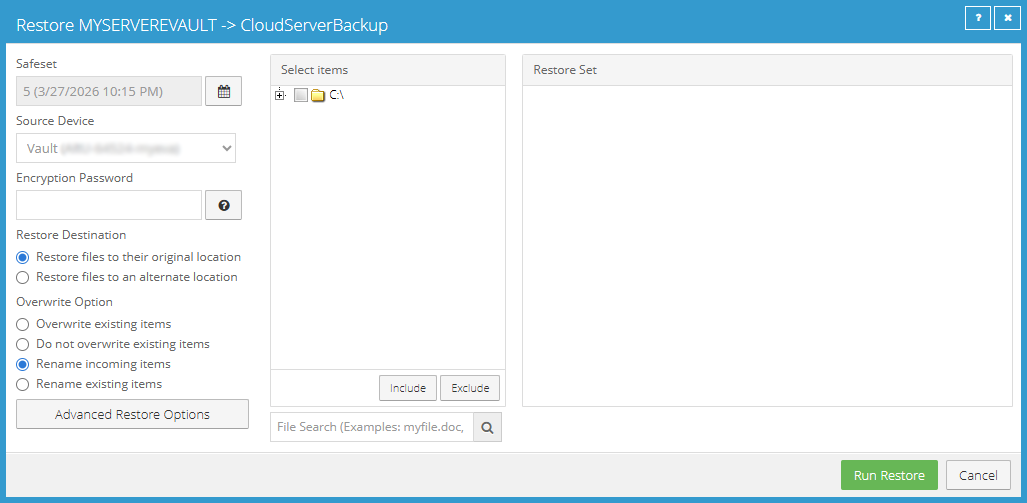
During a restore, you can configure various options that determine how and where the data will be restored.
The main restore options are:
- Destination - allows you to choose where to restore the data:
- to the original location;
- to a different location;
- to another server.
- Encryption Password - you must enter the encryption password used when creating the backup job; without this password, you cannot perform the restore.
- Overwrite Option - determines how existing files are handled:
- Overwrite existing items - overwrites existing files;
- Do not overwrite existing items - keeps existing files unchanged;
- Rename incoming items - renames the restored files;
- Rename existing items - renames files that are already present.
- Restore permissions (ACLs) - allows you to restore the original file and folder permissions.
- Advanced Restore Options - allows you to configure advanced options such as:
- data stream management;
- log detail level;
- bandwidth usage during the restore.
The restore behavior depends on the combination of selected options:
- if you choose the original location and enable overwriting, existing files will be replaced;
- if you disable overwriting, existing files will not be modified;
- if you use the rename options, files will be retained without conflicts;
- if you choose a different location or another server, the data will be restored without modifying the files in the original location.
| Scenario |
Restore behavior |
| Original location + overwriting enabled |
Existing files are replaced with those from the backup. |
| Original location + overwriting disabled |
Existing files are not modified. |
| Different location |
Files are restored without modifying the original files. |
| Rename options enabled |
Files are saved without conflicts with existing files. |
| Restore to another server |
Data is copied to the new destination without affecting the source server. |
Be careful when using the overwrite option: if enabled, existing files will be replaced and the operation cannot be undone.
How to perform a restore
- Access the server's Jobs section;
- locate the job from which you want to restore data;
- in the Action column, open the Select Action drop-down menu;
- select Restore;
- the restore window opens;
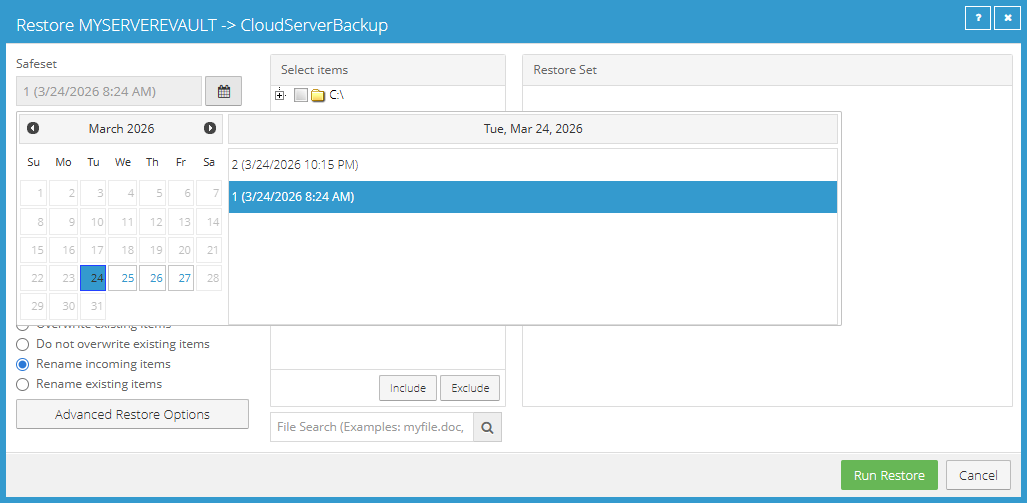
- select the backup (day, date and time) from which you want to restore data (Safeset);
- enter the encryption password;
- configure the restore options:
- choose whether to restore files to their original location or to a different location (Restore Destination);
- define how existing files should be handled (Overwrite Option);
- if necessary, select Advanced Restore Options to configure additional options (logs, performance and restore methods);
- in the folder tree (Select items), locate and select the files and/or folders to include in or exclude from the restore;
- select Run Restore to start the operation;
- the restore starts and its status is displayed in the Process Details window;
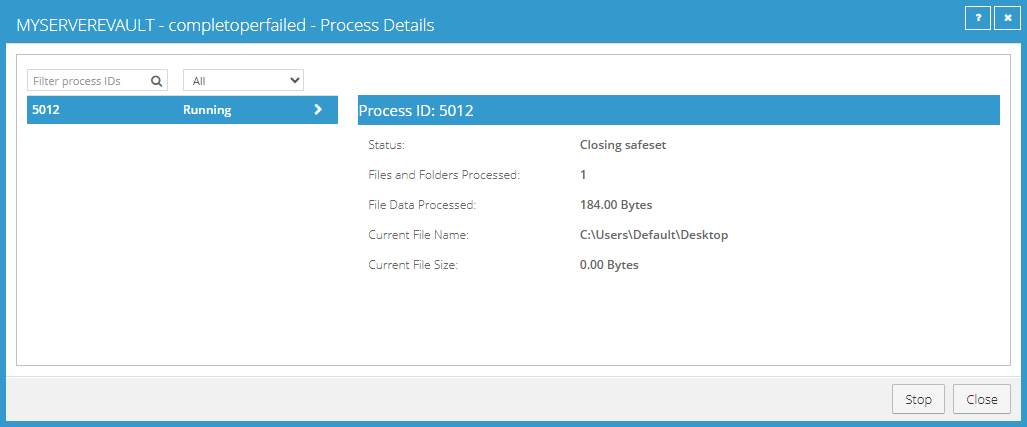
- select Close to close the window;
- once the operation is complete, verify that the files have been restored correctly to the selected destination.
How to restore to a different location
- Under Restore Destination, select Restore files to an alternate location;
- select the icon next to the field below;
- the Select Folder window opens;
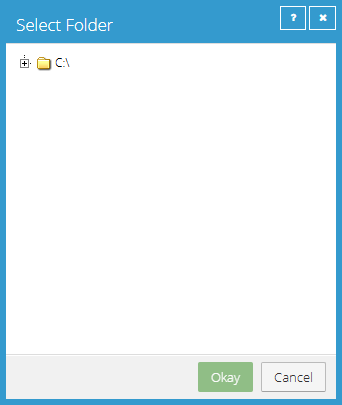
- choose the location where you want to restore the files and select Okay;
- continue with the restore procedure.
How to restore to another server
- Access the server's Jobs section;
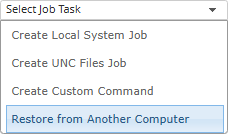
- open the Select Job Task drop-down menu;
- select Restore from Another Computer;
- the Restore From Another Computer window opens;
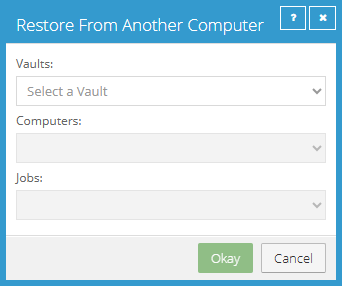
- select the Vault from which to retrieve the backups;
- select the server (Computers) from which you want to restore data;
- select the job (Jobs) associated with the backups;
- select Okay;
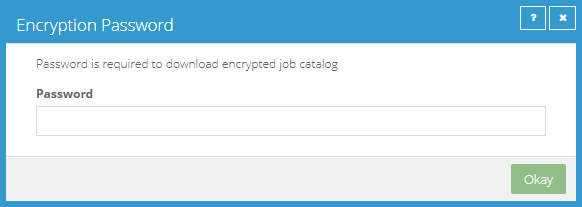
- in the Encryption Password window, enter the encryption password required to access the backup catalog;
- the restore window opens;
- select the backup (day, date and time) from which you want to restore data (Safeset);
- enter the encryption password;
- configure the restore options;
- in the folder tree (Select items), locate and select the files and/or folders to include in or exclude from the restore;
- select Run Restore to start the operation;
- the restore starts and its status is displayed in the Process Details window;
- select Close to close the window;
- once the operation is complete, verify that the files have been restored correctly to the selected destination.