How to view job history and logs
- Access the server's Jobs section;
- locate the job whose history you want to view;
- in the Action column, open the Select Action drop-down menu;
- select History / Logs;
- the History / Logs window opens, with two tabs:
- Job Details
- you can view details of completed backup runs (date and time);
- select a date from the calendar and select the backup you want to examine;
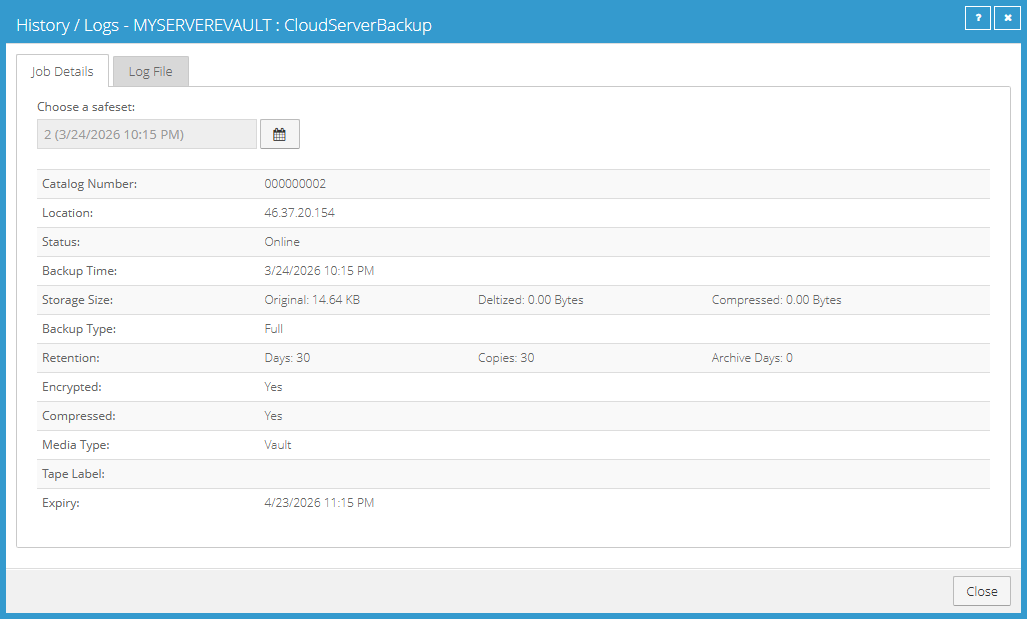
- review the available information (status, size, backup type, retention, compression and encryption).
- Log File
- you can view the logs of backup runs (date and time);
- select a date from the calendar and select the backup you want to examine;
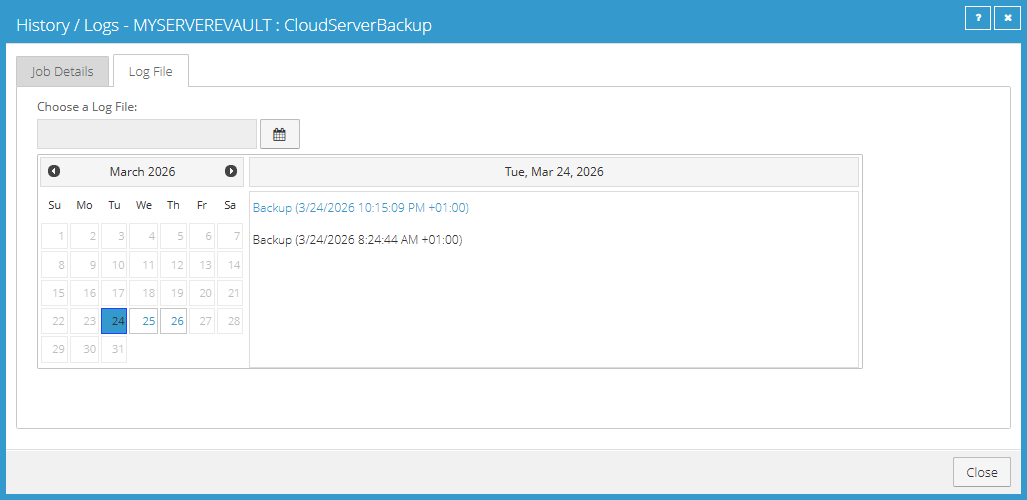
- you can view only errors and warnings (Errors and Warnings Only) or the complete log (Entire Log);
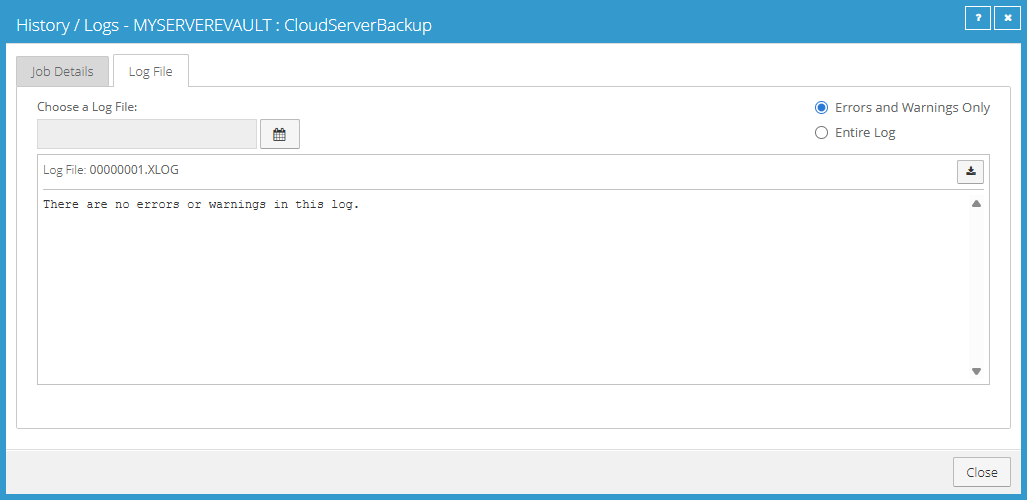
- if necessary, you can download the log file using the corresponding icon.
Job statuses and error management
In the
Jobs section, the
Last Backup Status column indicates the status of the most recent job execution and helps identify any issues.
- Completed - the backup completed successfully and the data was saved in the vault;
- Never Run - the job has never been run;
- Processing - the backup is currently running;
- Failed - the backup did not complete successfully and the data may not be available;
- Warning - the backup completed with issues (for example, inaccessible or excluded files); checking the logs is recommended.
If the status is
Failed or
Warning, follow these steps:
- access the job history and logs;
- analyze the execution details in the Job Details tab;
- check for errors or warnings in the Log File tab;
- verify that the server is powered on and connected to the network;
- verify that the selected files are accessible (correct permissions, files not in use, valid paths);
- make sure the encryption password is correct;
- check for communication issues between the agent and the vault (network or certificates);
- if applicable, verify that the pricing plan associated with the EVault Backup account has not exhausted its available resources.
If the problem persists, collect the information available in the logs and contact
support.