Required information
To connect to Object Storage using S3 Browser, you need:
- the Object Storage account name;
- the password associated with the Object Storage account;
- the Region URL of the region where the account was created.
Configuring S3 Browser
- Download S3 Browser, install and run the program;
- when you first launch the program, the window for configuring the connection to the Object Storage account is displayed;
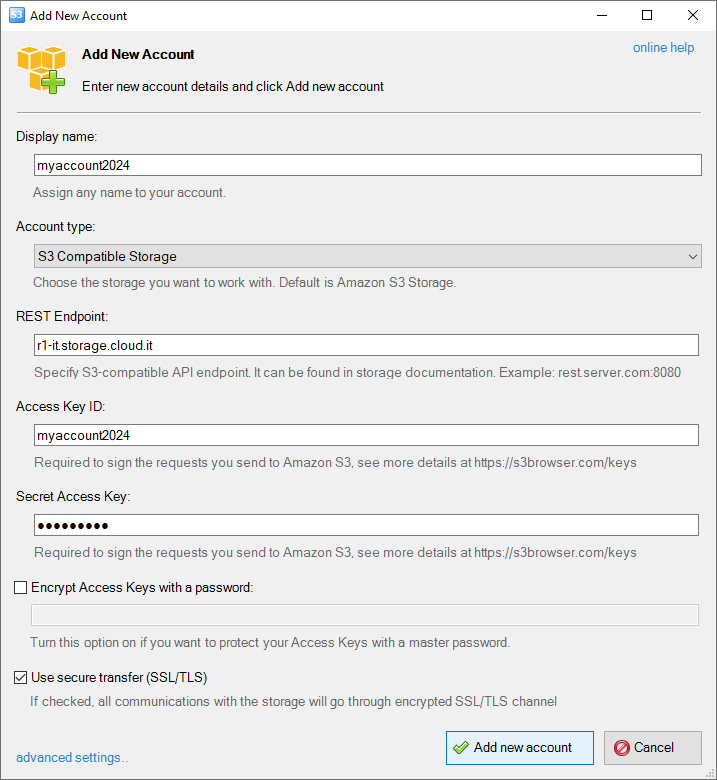
- Display name - enter the name you want to assign to the connection;
- Account type - select S3 Compatible Storage;
- REST Endpoint - enter the Region URL;
- Access Key ID - enter the Object Storage account name;
- Secret Access Key - enter the Object Storage account password.
- select Add new account;
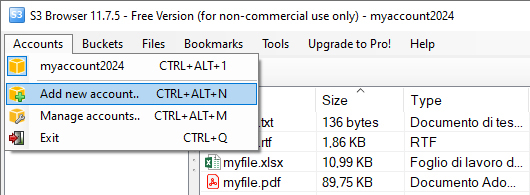
- to add another account later, go to Accounts > Add new account..;
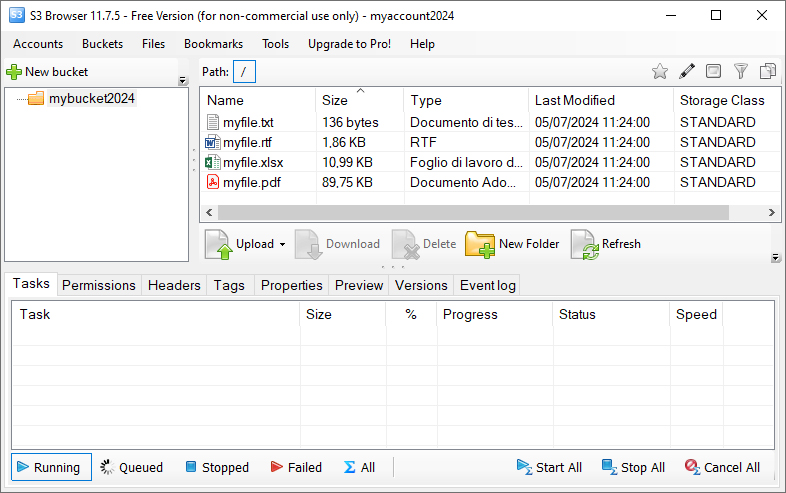
- once configuration is complete, the buckets in the account are displayed on the left-hand side of the interface, while the files and folders in the selected bucket are displayed on the right-hand side.
Creating and managing a bucket
If there are no buckets in the Object Storage account:
- select + New bucket;
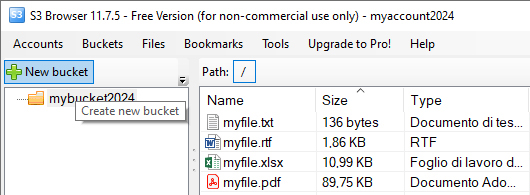
- in the Create New Bucket window, enter the bucket name;
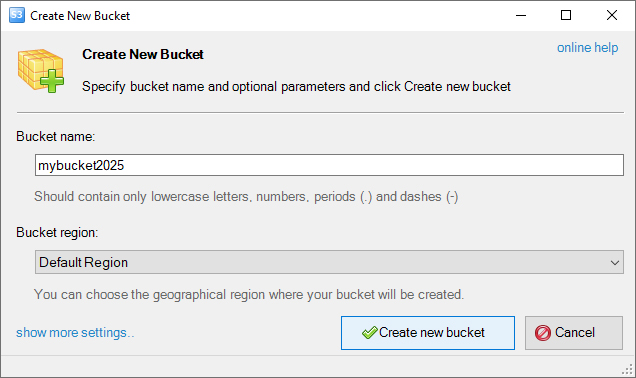
- confirm the creation.
For information about bucket features and naming rules, see the documentation on
bucket features and rules.
After selecting a bucket, you can use the commands available on the right-hand side of the interface to upload and download files, delete items, create folders and refresh the contents.

Configuring permissions
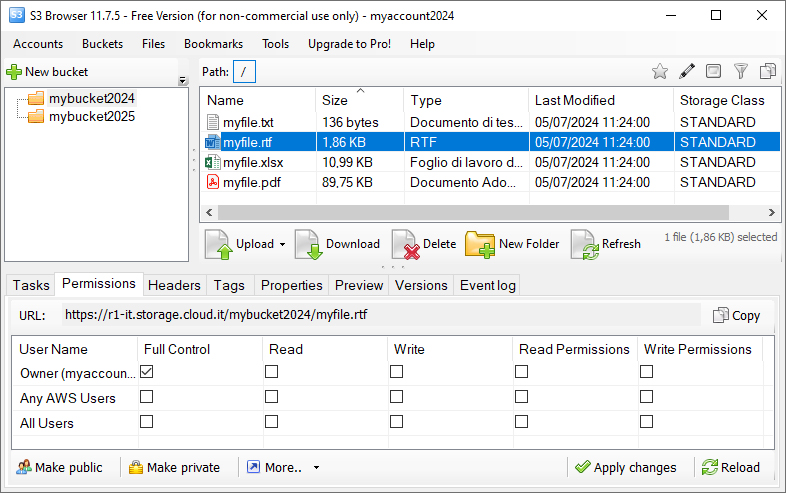
S3 Browser allows you to configure permissions for buckets, folders and individual files.
Changing permissions for a bucket or folder
- select the bucket or folder;
- go to the Permissions tab;
- change the individual permissions or use Make public or Make private;
- if you want to apply the permissions to the items contained in the bucket or folder as well, select Apply for all subfolders and files;
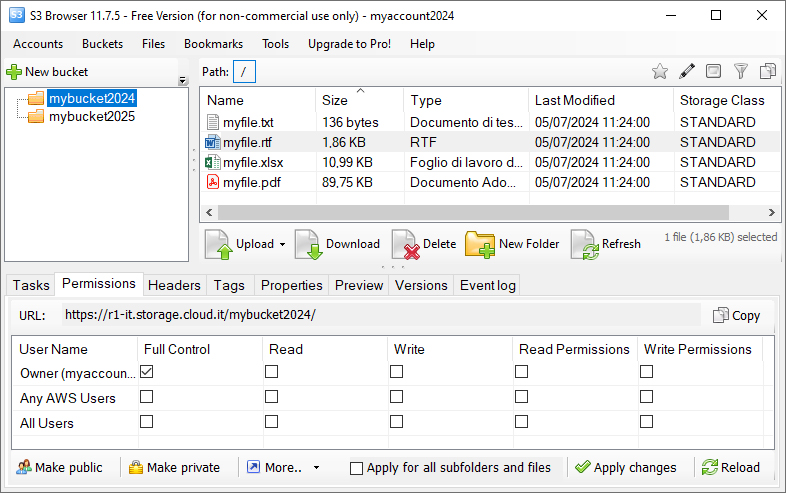
- select Apply changes to confirm the changes.
Changing permissions for a file
- select the file in the Object Storage space;
- go to the Permissions tab at the bottom;
- change the individual permissions or use:
- Make public to make the file public;
- Make private to make the file private.