Local resource redirection
During an RDP connection to a VMware Cloud Server with a Windows template, you can make some resources and devices connected to your local computer available in the remote session.
Depending on the RDP client you are using and the system configuration, you can redirect, for example:
- local drives and storage devices;
- printers;
- smart cards;
- other devices and resources supported by the RDP client.
The availability of individual resources depends on the RDP client you are using and the settings or policies applied to the local system and the Cloud Server.
How to make local resources available in the RDP session
Before connecting to the Windows Cloud Server:
- open Remote Desktop Connection on your Windows computer;
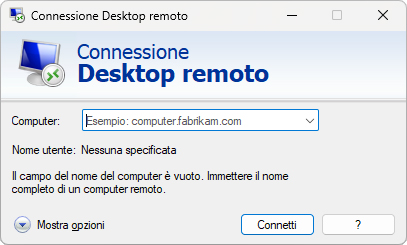
- go to Show Options;
- select the Local Resources tab;
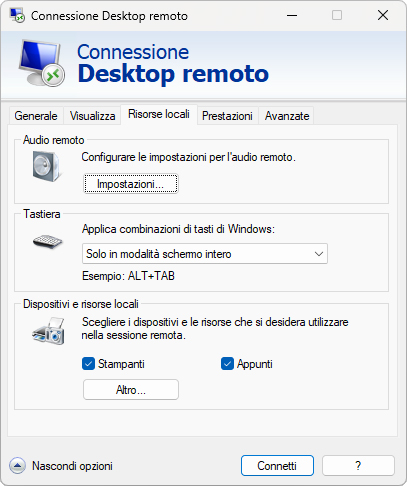
- go to More...;
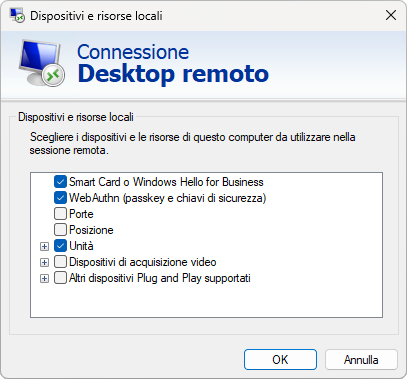
- select the local resources you want to make available in the remote session;
- confirm and start the RDP connection.
The selected resources will be available on the Cloud Server during the RDP session, provided that their redirection is allowed by the system configuration.
Local resource redirection uses the network connection between the local computer and the Cloud Server; performance may therefore depend on the available bandwidth and the type of resource being used.