Bare Metal & VPS > Dedicated servers > Accessing a Linux dedicated server

06 Accessing a Linux dedicated server

Connecting to a Linux dedicated server from a Windows computer

To connect to a Linux dedicated server from a computer running Windows, you need to use an SSH client such as PuTTY (you can download it from https://www.chiark.greenend.org.uk/~sgtatham/putty/latest.html).
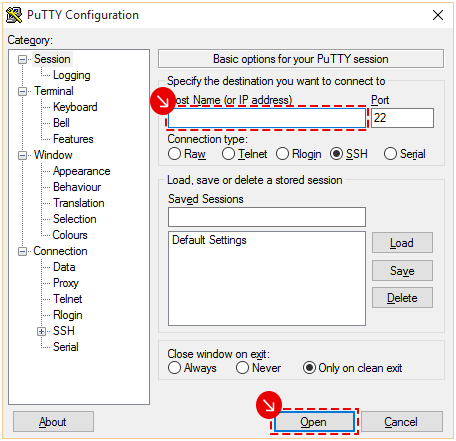
  • Launch the PuTTY client;

  • in the Host Name (or IP address) field, enter the IP address of the dedicated server;
    • leave the Port field and the Connection Type option unchanged;
  • click Open;
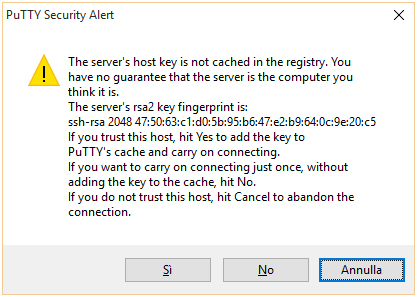
  • on the next screen, accept the key fingerprint by clicking Yes. This saves the connection key between the dedicated server and the computer you are using, so you will not need to save it again for subsequent access;
  • if you click No, you will see the following message every time you access the dedicated server;
  • in the prompt that appears, enter the dedicated server credentials (in the format admin123456 and the corresponding password);
  • depending on the operating system installed on the Linux dedicated server, proceed as described below:

Connecting to a Linux dedicated server from a Linux or Mac computer

To connect to a Linux dedicated server from a computer running Linux or Mac, use an SSH client (already installed in the operating system) or enter the following command using the primary IP address of the dedicated server.
 

ssh xx.xxx.xxx.xxx -l admin123456

Debian/Ubuntu

  • Enter the username (in the format admin123456) after Login as: and press Enter;
     

    Login as: admin123456

  • enter the password associated with the username where the green rectangle is shown and press Enter (the characters you type will not be displayed, but the password is still entered);
     

    [email protected]'s password:  

  • if this is your first access, the system will ask you to change your password for security reasons.

Debian/Ubuntu: obtaining administrative (root) privileges

  • Type the su - command after the $ symbol and press Enter;
     

    $ su -

  • enter the password associated with the username where the green rectangle is shown and press Enter (the characters you type will not be displayed, but the password is still entered);
    • for Debian
       

      Password:
      root@debian:~#  

    • for Ubuntu
       

      Password:
      root@ubuntu:~#  

  • if this is your first access, the system will ask you to change your password for security reasons.

AlmaLinux/CentOS

  • Enter the username (in the format admin123456) after Login as: and press Enter;
     

    Login as: admin123456

  • enter the password associated with the username where the green rectangle is shown and press Enter (the characters you type will not be displayed, but the password is still entered);
     

    [email protected]'s password:
    Last login: Sun Apr 6 10:10:10 2025 from xxx.xxx.xx.xxx
    Parallels Plesk Panel is running on this server.

    [admin123465@admin123456 ~]$  

  • if this is your first access, the system will ask you to change your password for security reasons.

AlmaLinux/CentOS: obtaining administrative (root) privileges

  • Type the su - command after the $ symbol and press Enter;
     

    [admin123456@admin123456 ~] $ su -

  • enter the password associated with the username where the green rectangle is shown and press Enter (the characters you type will not be displayed, but the password is still entered);
     

    Password:
    Last login Sun Apr 6 10:10:10 CEST 2025 on tty1
    [root@admin123456 ~]#  

  • if this is your first access, the system will ask you to change your password for security reasons.