How to view a server
To view the servers configured in the Commvault Cloud Backup service:
The
Files section displays the list of servers detected by the system.
For each server, various details are available, including:
- Configured - indicates whether the agent is correctly installed and the server is ready to be managed by the system;
- Last backup attempt - date and time of the last backup attempt;
- Plan - backup plan assigned to the server (if any);
- SLA status - compliance status with the backup rules;
- Region - geographical area where the service is configured;
- Actions - menu of operations available for the server.
If the Plan field displays Not assigned, no backup plan has yet been assigned to the server, so data protection is not active.
Server protection status
When a server is added to Commvault (for example, after installing the agent), the system detects it and displays it in the console. However, at this stage, the server is not yet protected. A server is initially marked as
Not protected because no backup strategy has been configured.
To enable protection, you must
assign a backup plan to the server. Only after this operation does the server change to
Protected status, and data starts being backed up according to the defined settings.
Installing the agent allows Commvault to detect the server, but it does not automatically enable data protection. To start protecting the server, you must always assign a backup plan.
How to assign a backup plan to a server
To enable data protection, you must assign a backup plan to the server. The backup plan defines when backups are performed and how long data is retained.
- Access Commvault Command Center;
- from the menu, select Protect > Files;
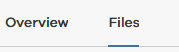
- switch from the Overview tab to the Files tab;
- locate the server you want to manage and select the three-dot menu at the end of its row (in the Actions column);
- select Manage plan;
- choose the backup plan to assign to the server;
- by enabling Define your own backup content, you can choose which data to protect and which data to exclude;
- under Include global exclusions, you can choose how global exclusions are applied:
- Off - disables global exclusions for the subclient;
- On - enables global exclusions for the subclient;
- Use cell level policy - inherits exclusions based on the settings defined at the CommCell Console, company or client group level;
- confirm the operation by selecting SAVE.
Once the backup plan has been assigned:
- the Plan field displays the selected backup plan (for example, ret2_sf_1gg_inc_1gg);
- the server changes to Protected status;
- backups are performed automatically according to the defined schedule;
- you can run manual backups.
How to change a server's backup plan
You can change the backup plan assigned to a server to adapt data protection settings to new requirements.
To change the backup plan:
- access Commvault Command Center;
- from the menu, select Protect > Files;
- locate the server you want to manage and select the three-dot menu at the end of its row (in the Actions column);
- select Manage plan;
- from the Plan drop-down menu, choose the new backup plan to assign;
- confirm the operation by selecting SAVE.
Changing the plan automatically updates the backup schedule and data retention rules.
How to remove a server's backup plan
To remove the backup plan assigned to a server:
- access Commvault Command Center;
- from the menu, select Protect > Files;
- locate the server you want to manage and select the three-dot menu at the end of its row (in the Actions column);
- select Manage plan;
- from the Plan drop-down menu, select None;
- confirm the operation by selecting SAVE.