Server deletion options in the EVault console
When deleting a server from the EVault console, you can choose between the following deletion options:
- Fully delete computer(s) - deletes the server and all its associated backups.
- Remove computer(s) from Portal only - removes the server while retaining all its associated backups, which will continue to be stored and occupy storage space.
The selected deletion option affects how the server can be
reconfigured in the EVault console.
What happens when you delete a server
Deleting a server from the EVault console results in:
- the removal of the server from the EVault console;
- the interruption of its associated jobs and, depending on the selected option, their deletion along with the backup data;
- no further backups being performed.
How to delete a server
To delete a server from the EVault console, follow these steps:
- in the Computers section, locate the server you want to delete;
- select the checkbox at the beginning of the corresponding row;
- open the Actions drop-down menu and select Delete Selected Computer(s);
- in the Delete Computer(s) window, two options are available:
- Fully delete computer(s);
- Remove computer(s) from Portal only;
- select Delete;
- in the Confirm Your Deletion window, confirm the deletion by selecting Confirm Deletion.
Server reconfiguration scenarios
Reconfiguring a server in the EVault console depends on how it was deleted and whether the connection agent is still installed on the server:
How to reconfigure a deleted server - Remove computer(s) from Portal only with agent installed
This reconfiguration procedure is only valid if you selected Remove computer(s) from Portal only when deleting the server from the EVault console.
If you kept the agent installed but the console does not detect the server, you may need to uninstall and reinstall it before proceeding with reconfiguration.
- Access the EVault console;
- from the horizontal menu, select Computers;
- you will see the list of servers;

- locate the server you want to reconfigure (Unconfigured in the Status column);

- select the arrow at the end of the corresponding row;
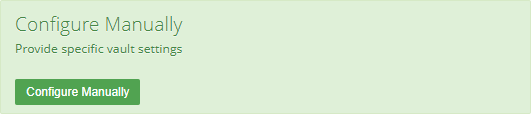
- select Configure Manually (the automatic procedure cannot be used when reconfiguring a server);
- in the Vault Settings section, select Re-register;

- the Vault Settings window opens;
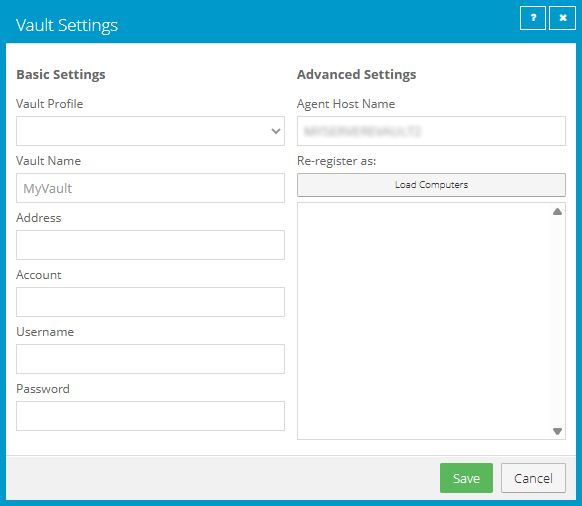
- open the Vault Profile drop-down menu and verify that the correct vault is selected;
- the fields below are completed automatically;
- select Load Computers to load the list of servers available for re-registration;
- select the server you want to reconfigure from the list;
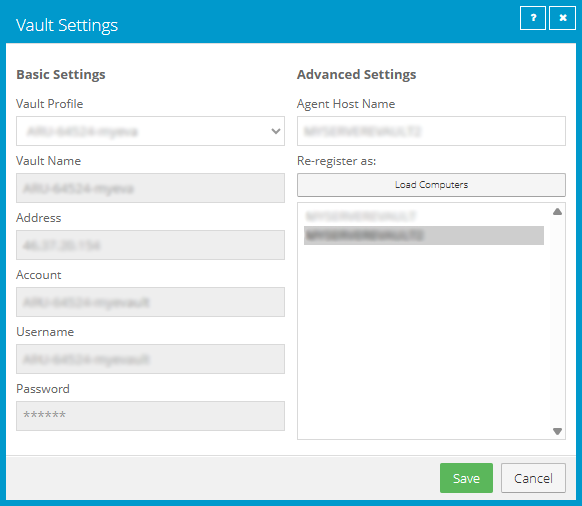
- select Save;
- in the Confirmation window, select Yes to proceed with re-registration;
- the CloudServerBackup job is available;

- the server is now configured again in the EVault console;
- if you refresh the page, the server status is now OK with warnings;

- manually run the CloudServerBackup job to complete the server configuration;
- once the backup is complete, the server status changes to OK.