How to view servers
To view servers, follow these steps:
- access the EVault console;
- from the horizontal menu, select Computers;
- you will see the list of servers on which you have installed the connection agent (both configured and unconfigured).

Server statuses and their meanings
 |
Unconfigured |
The server is recognized by the EVault console but has not yet been configured. |
 |
OK |
The server has been configured correctly and the first backup has been performed. |
 |
OK with warnings |
The server has been configured correctly, but there are warnings, for example because the first backup has not yet been performed or problems have occurred with backup jobs. |
 |
Attention |
There are one or more problems with the backup jobs associated with the server (for example, errors during execution). You need to check the job statuses and related logs. |
 |
Certificate failure |
There is a problem with the EVault agent certificate. For security reasons, the server cannot communicate with the console, and backup and restore jobs cannot be performed. You need to check the EVault agent configuration or reinstall it. |
 |
Scheduled for deletion |
The server has been marked for deletion. Depending on the option selected during deletion, the associated jobs and backups may be removed or retained. |
How to configure a server
Server configuration takes place after installing the EVault agent and allows the server to be registered in the EVault console.
To configure a server, follow these steps:
- in the Computers section, locate the server you want to configure (Unconfigured in the Status column);
- select the arrow at the end of the corresponding row;
- you can choose one of the following configuration methods:
- Configure Automatically - automatic configuration;
- Configure Manually - manual configuration;
- complete the fields in the Configure Automatically section:
- Create a password - choose an encryption password;
- Confirm your password - confirm the selected password;
- Password hint - enter a hint to help you remember it (the password cannot be recovered);
- Choose a vault - this field is completed automatically;
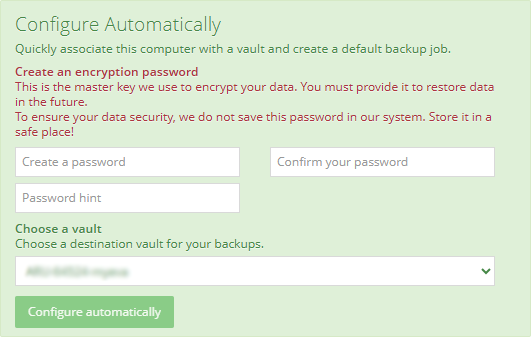
- confirm the configuration by selecting Configure automatically;
- once configuration is complete, the server status changes from Unconfigured to OK with warnings;
What to do after configuring a server
After configuration, the server has the status
OK with warnings because the first backup has not yet been performed, so the server is not yet protected. You can choose one of the following options:
- wait for the default job (CloudServerBackup) to run according to the configured schedule;
- run the backup manually.
Once the first backup has completed successfully, the server status changes to
OK.
The server is now protected.