What is the connection agent
The connection agent is a software component required to enable data backups on a server, whether Windows or Linux. Once installed and configured, the agent enables communication between the server and the EVault management console, allowing you to perform backup, restore and monitoring operations.
Available versions of the connection agent
Agent Windows x64 9.40.1031
- Windows Server 2025
- Windows Server 2022
- Windows Server 2019
- Windows Server 2016
- Windows 11
- Windows 10
System Restore 9.40
- Windows Server 2025
- Windows Server 2022
- Windows 11
System Restore 9.40 Legacy
- Windows Server 2019
- Windows Server 2016
- Windows 10
Agent Linux x64 9.40.1011
- Debian 13
- Debian 12
- Debian 11
- Debian 10
- openSUSE Linux 16
- openSUSE Linux 15
- Oracle Linux 10
- Oracle Linux 9
- Oracle Linux 8
- Oracle Linux 7
- Red Hat Enterprise Linux Server 10
- Red Hat Enterprise Linux Server 9
- Red Hat Enterprise Linux Server 8
- Red Hat Enterprise Linux Server 7
- Rocky Linux 10
- Rocky Linux 9
- Rocky Linux 8
- SUSE Linux Enterprise Server 16
- SUSE Linux Enterprise Server 15
- SUSE Linux Enterprise Server 12
- Ubuntu Server 24.04
- Ubuntu Server 22.04
- Ubuntu Server 20.04
- Ubuntu Server 18.04
How to download the connection agent
- Access Aruba CMP;
- from the menu, select PUBLIC CLOUD > Backup;
- in the Cloud Backup - Evault/Commvault section, select Go to Control Panel;
- in the Control Panel, select PUBLIC CLOUD > Cloud Backup > Download Agent (EVault);
- in the Download Agent section, you can download the connection agent and the .iso files (used for Bare Metal Restore).
Information required to configure the agent
Before starting, make sure you have the following information, which you can find on the Backup account details page:
- User Name - of the Backup account (in the format username\username).
- Password - set when creating the Backup account.
- URL Evault - in the format r1-it1.backup.cloud.it.
What to do if a firewall is enabled on the server
If you are installing the agent on a server with an active outbound firewall (OUTBOUND), make sure the following ports are open: 25, 80, 443, 8087, 8086, 2546, 807.
The default Windows configurations do not require any changes to the ports.
How to install the connection agent on a Windows server
- Access the server via RDP;
- download the connection agent;
- run the executable file to start the installation;
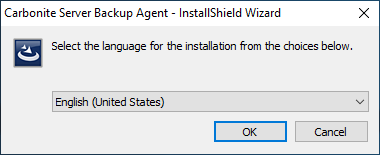
- select one of the available languages;
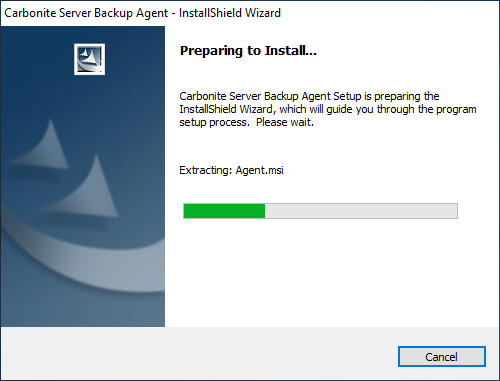
- wait for the installation wizard to load;
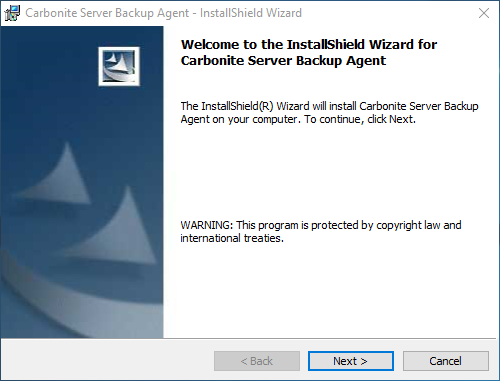
- proceed through the wizard by clicking Next > at each step;
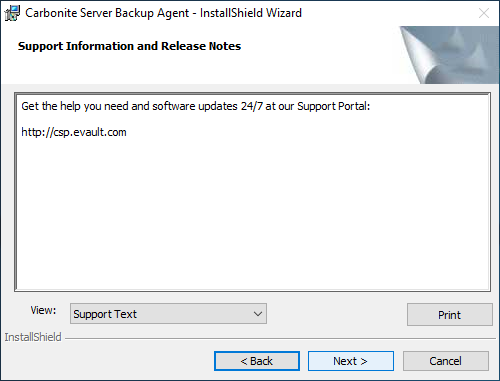
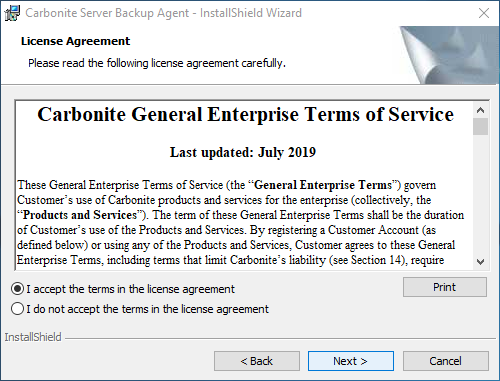
- accept the license terms and conditions, then confirm by clicking Next >;
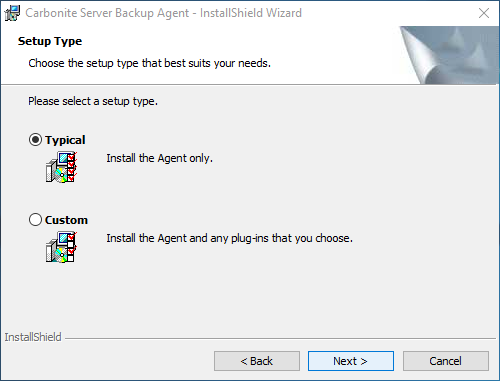
- select Typical and confirm by clicking Next >;
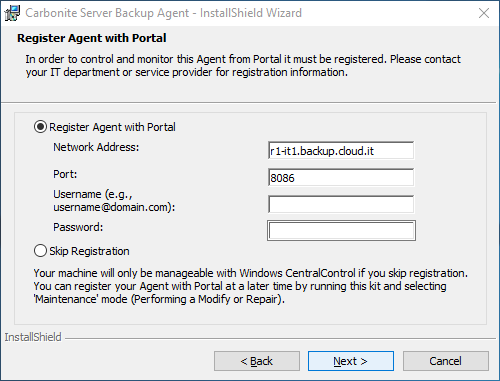
- select Register Agent with Web CentralControl and enter:
- Network Address: the URL Evault address shown on the Backup account details page;
- Port: leave the default value 8086;
- Username: the User Name shown on the Backup account details page;
- Password: the password you set when creating the Backup account;
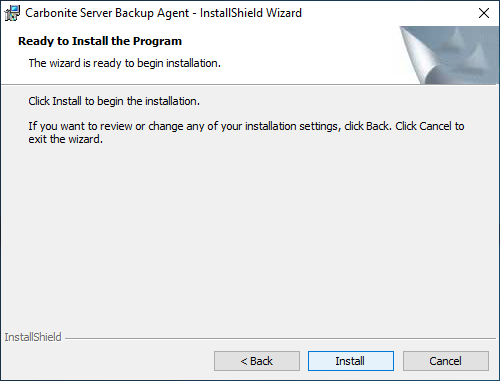
- confirm by clicking Install;
- wait for the installation to complete;
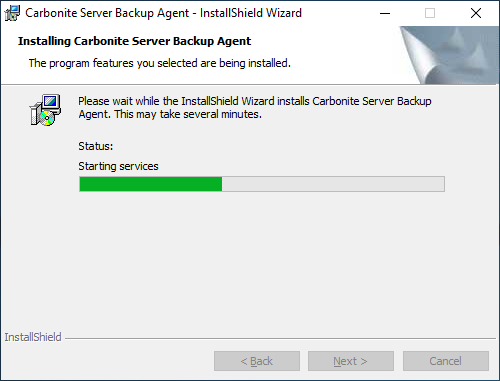 ;
;
- confirm the installation by clicking Finish.
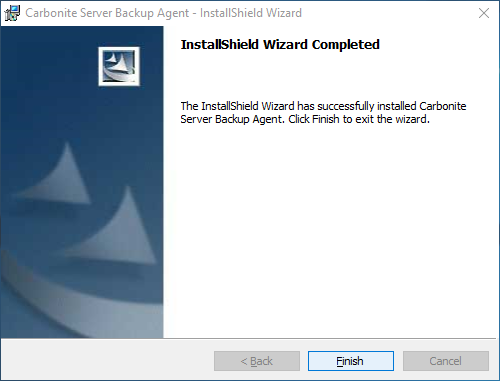
- once the connection agent has been installed, we recommend restarting the server.
How to install the connection agent on a Linux server
- Access the server via SSH;
- download the connection agent:
- for 64-bit systems;
wget https://agents.backup.cloud.it/agents/Agent-Linux-x64-9.40.1011.tar.gz
- extract the downloaded package:
- for 64-bit systems;
tar -zxf Agent-Linux-x64-9.40.1011.tar.gz
- open the extracted directory:
- for 64-bit systems;
cd Agent-Linux-x64-9.40.1011
- start the installation:
- specify where to install the connection agent:
Installation directory? [/opt/BUAgent]
press Enter;/opt/BUAgent doesn't exist. Create it? ([Y]/n)
type y and press Enter;
- select the language:
Select language: [en-US]
press Enter;
- register the agent:
- when prompted:
Do you wish to register to a Web-based Agent Console server? ([Y]/n)
type y and press Enter;
- when prompted:
What is the Web-based Agent Console address? ("-" to cancel)
enter the URL Evault address and press Enter;
- when prompted:
What is the Web-based Agent Console connection port? [8086] ("-" to cancel)
press Enter;
- when prompted:
What is your Web-based Agent Console username? ("-" to cancel)
enter the User Name and press Enter;
- when prompted:
What is your Web-based Agent Console password? ("-" to cancel)
enter the password and press Enter.
- once the connection agent has been installed, we recommend restarting the server.
What to do after installing the connection agent on a server
After completing the connection agent installation, restart the server to apply the changes.
Then access the
EVault management console and:
How to uninstall the connection agent from a Windows server
- Access the server via RDP;
- open the Control Panel from Start;
- select Programs and Features;
- right-click the EVault Software Agent and select Uninstall;
- in the window that appears, click Yes;
- select Total Uninstall and confirm with Next >;
- once the connection agent has been uninstalled, we recommend restarting the server.
How to uninstall the connection agent from a Linux server
- Access the server via SSH;
- from the command line, run:
/opt/BUAgent/uninstall.sh
press Enter;- when prompted:
VVAgent is still running. Do you wish to stop it? ([Y]/n)
type y and press Enter;
- when prompted:
This will remove jobs, settings, etc. (y/[N])
type y and press Enter;
- once the connection agent has been uninstalled, we recommend restarting the server.