Cloud Servers on which you can reset the access password
If you have lost or cannot remember your Cloud Server access password, you can reset it. The procedure varies depending on the type of Cloud Server and the operating system used to create it.
| Type |
Linux |
Windows |
| OpenStack Cloud Server |
● |
|
| VMware Cloud Server |
● |
● |
| Cloud VPS Hyper-V |
● |
● |
●
You can reset the password yourself by following this guide.
To reset the password, you must open a support request.
When you create a Cloud Server, you are asked to choose an access password for the Cloud Server administrative user (
administrator for Windows operating systems and
root for Linux operating systems). You must keep the password you choose, as Aruba Cloud support cannot retrieve it. If you lose your access password, you may no longer be able to access the data stored on the Cloud Server.
Depending on the operating system, there are several ways to force the operating system to reset the administrative user password.
Before you start
The operations described may affect the system and data, potentially causing malfunctions or data loss:
- always back up your data or the entire server externally before performing any operation;
- if available, create a snapshot of the server from the management panel before making changes to the system;
- for unmanaged services, you are responsible for managing the operating system and software;
- if in doubt, consult a trusted system administrator or check the latest official documentation for the operating system or software in use.
Cloud Server Windows 2008/2012/2016
To reset the password of a Cloud Server running Windows Server (2008/2012/2016), you must first
upload a virtual CD image and
connect it to the virtual CD/DVD drive. You will then need to connect to the Cloud Server using the
recovery console.
- Download the cd140201.iso virtual CD image required to boot the Cloud Server from CD.
- Upload the image to the FTP space provided for your account.
- Connect the image to the virtual CD/DVD drive of the Cloud Server whose password you want to reset.
- Shut down the Cloud Server using the Shut down the Cloud Server from the operating system option.
- For Hyper-V:
- start the Cloud Server. It will automatically boot from the CD.
- For VMware, if you want to permanently change the Cloud Server BIOS boot order so that it boots from CD whenever a bootable CD is present when restarting, proceed as follows:
- connect to the Cloud Server using the recovery console;
- start the Cloud Server and, before the operating system loads, quickly press F2 to access the Cloud Server BIOS. You only have a very short time to press F2 before the Cloud Server boots from the disk;
- go to the Boot section of the BIOS and change the boot order, giving the CD/DVD drive priority over the HDD containing the operating system. Save the BIOS configuration and restart;
- if the Cloud Server does not boot from the CD and immediately loads the operating system, repeat the procedure.
- For VMware, if you want to boot from the CD only once using the Cloud Server boot menu, proceed as follows:
- connect to the Cloud Server using the recovery console;
- start the Cloud Server and, before the operating system loads, quickly press ESC to display the boot menu. You only have a very short time to press ESC before the Cloud Server boots from the disk;
- select CD-Rom Drive from the boot menu and press Enter;
- if the Cloud Server does not boot from the CD and immediately loads the operating system, repeat the procedure.
- When the virtual CD boots, a screen similar to the following is displayed.
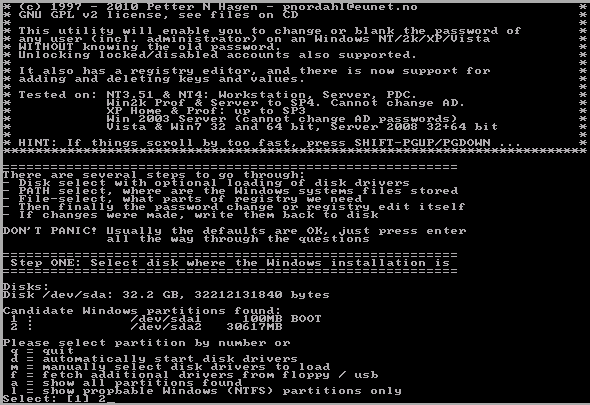
Follow the on-screen instructions. In the first step, you are asked to specify the disk containing the Windows operating system for which you do not know the administrator password. Enter the number corresponding to the drive in the list and press Enter to confirm.
- In the second step, you are asked to confirm the path and registry file. Usually, you can simply confirm the suggested path by pressing Enter.
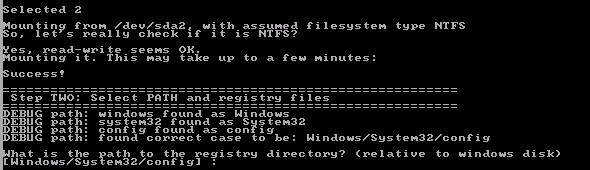
- Select the Password reset operation by choosing 1 and confirm.

- In the third step, choose 1 for Edit user data and password and confirm.

- When you are asked which user you want to change the password for, select the administrator user. As this is usually the suggested user, you can simply press Enter without entering anything.

- From the available options, choose 1 for Clear (blank) user password.

There is also an option to set a new password directly, but it may not work correctly. If you choose to leave the administrator user password blank, you can create a new password after your first login.
- Once the password change has been confirmed, enter ! to exit and confirm.

- Enter q and confirm to exit.

- In the fourth step, you are asked to save the changes. Enter y and press Enter to confirm.

- Once the changes have been saved, shut down the Cloud Server. Eject the disk image from the virtual CD/DVD drive and restart the Cloud Server.
Cloud Server AlmaLinux
Cloud Server CentOS
Cloud Server Debian
Cloud Server Ubuntu
To reset the password of a Cloud Server Ubuntu, access the Cloud Server using the
recovery console and refer to the Ubuntu
LostPassword guide.
Cloud Server openSUSE