Requirement
Make sure you have completed the
requirements for connecting a Cloud Server to the Unified Storage service.
Connecting the Cloud Server with Windows
The network names, mount points and corresponding IP addresses shown in the procedure are examples only.
- Access the Cloud Server (VMware Cloud Server or Cloud VPS Hyper-V) via RDP;
- go to Start and select Control Panel;
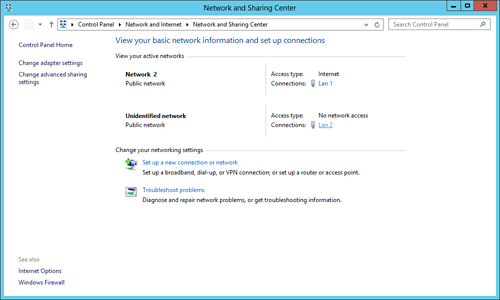
- select Network and Internet > Network and Sharing Center and select the Lan 2 network;
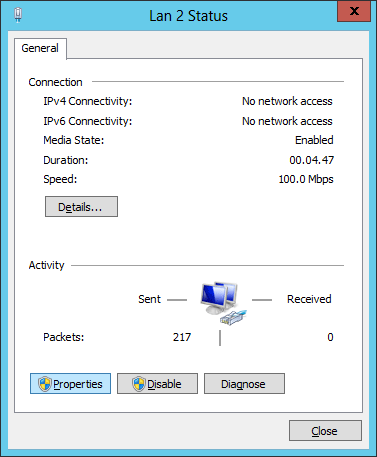
- in the Lan 2 Status window, select Properties;
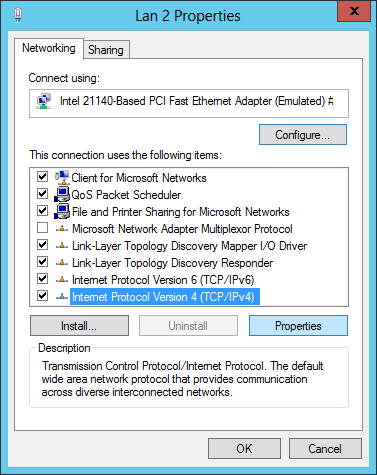
- in the Lan 2 Properties window, select Internet Protocol Version 4 (TCP/IPv4) and select Properties;
- in the Internet Protocol Version 4 (TCP/IPv4) Properties window, select Use the following IP address:
- in the IP address field, enter the mount point assigned to the protocol, changing the last value;
- in the Subnet mask field, enter 255.255.255.0.
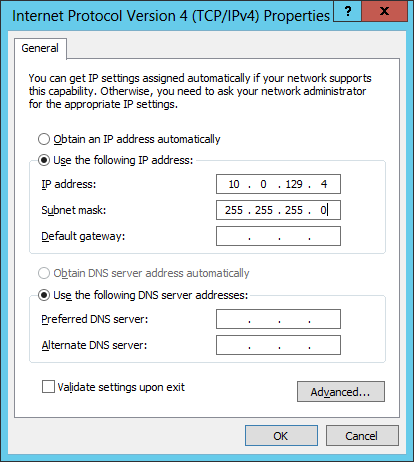
- confirm with OK;
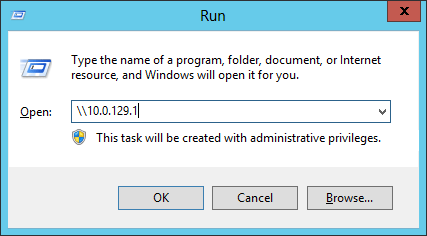
- to check that the configuration is correct, open Run and enter the mount point;
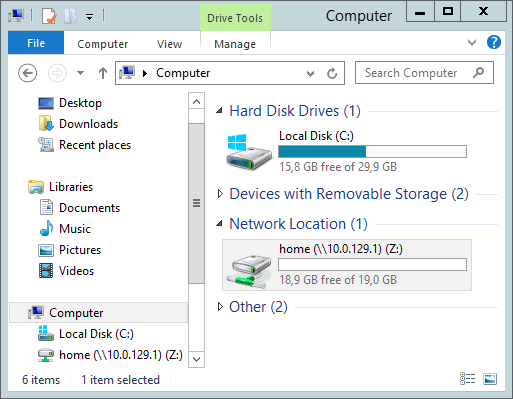
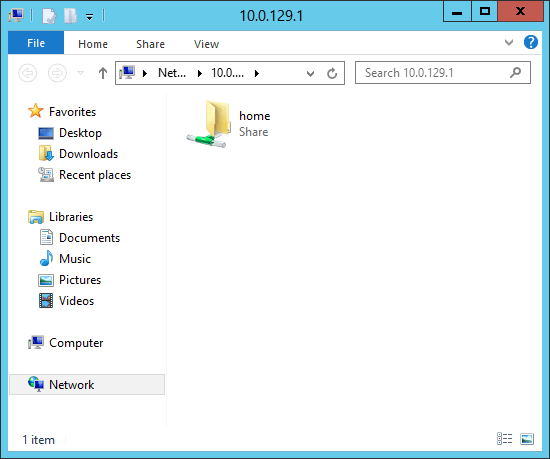
- a window like the following opens:
Assigning a drive letter to the Unified Storage connection
The network names, mount points and corresponding IP addresses shown in the procedure are examples only.
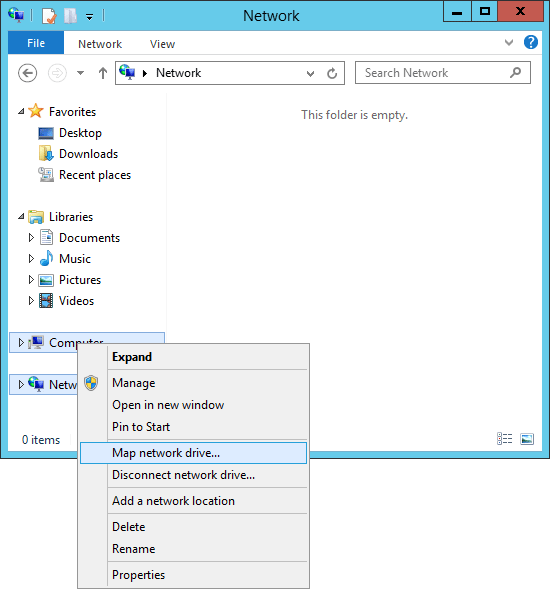
- Right-click Computer and select Map network drive...;
- in the Map Network Drive window, under Drive, select a drive letter;
- in the Folder field, enter the mount point followed by \home;
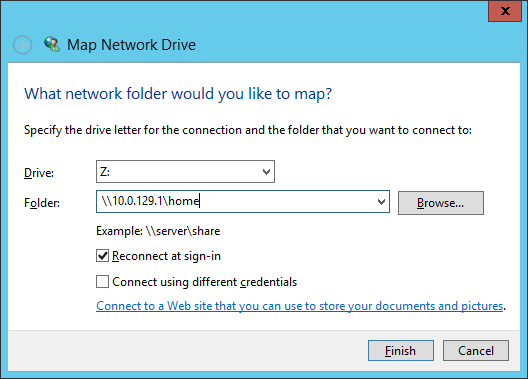
- confirm with Finish;
- the Unified Storage service space can now be accessed using the assigned drive letter.