How to view backup jobs
- Access the EVault console;
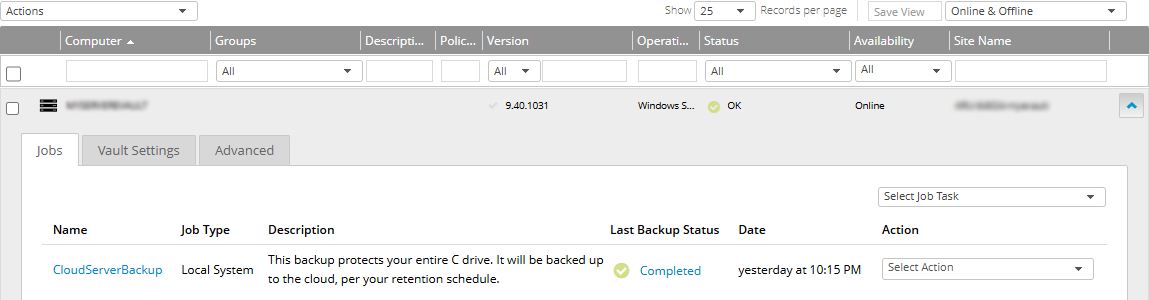
- from the horizontal menu, select Computers;
- you will see the list of servers;

- locate the server whose jobs you want to view;
- select the arrow at the end of the corresponding row;
- you will see the list of jobs associated with the server, including information about their status, schedule and last execution.
How to create a backup job
- Access the server's Jobs section;
- open the Select Job Task drop-down menu and select the type of job you want to create:
- Local System Job (Windows and Linux servers)
- UNC Files Job (Windows servers)
- NFS Files Job (Linux servers)
- Custom Command (Windows and Linux servers)
- the Create New Job window opens;
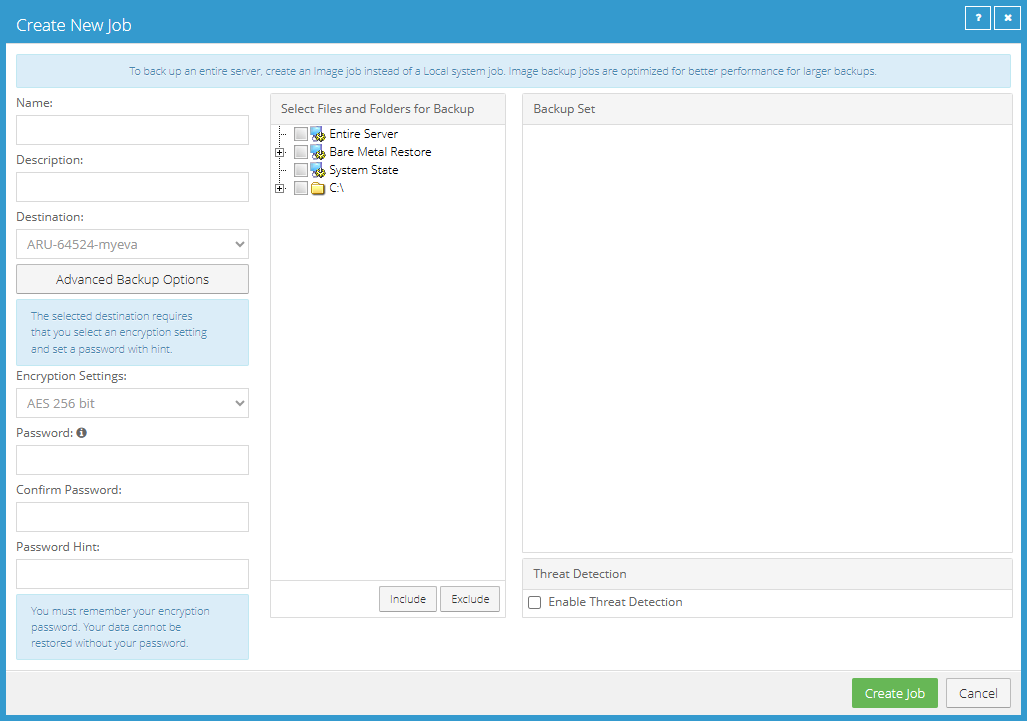
- the job is ready to be saved: select Create Job;
- the View / Add Schedule window opens, allowing you to configure the job schedule (execution time, frequency and retention);
-
For more information about scheduling parameters (retention, frequency and execution time), see the guide
Job scheduling.
- you can modify the various parameters if necessary;
- select Save to complete the job creation;
- the newly created job will appear in the Jobs section;
- you can either wait for the job to run according to the configured schedule or run it manually.
How to run a job manually
You can run a backup job manually at any time, regardless of the configured schedule.
- Access the server's Jobs section;
- locate the job you want to run;
- in the Action column, open the Select Action drop-down menu;
- select Run Job;
- in the Run Job window, you can:
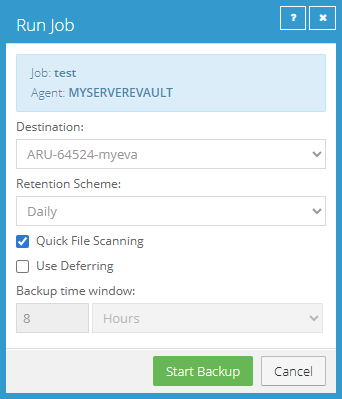
- choose where to store the backup (Destination);
- change the retention policy (Retention Scheme);
- enable quick file scanning (Quick File Scanning);
- defer execution (Use Deferring);
- select Start Backup;
- the job starts immediately, regardless of the configured schedule;
- the Process Details window opens, showing the backup progress;
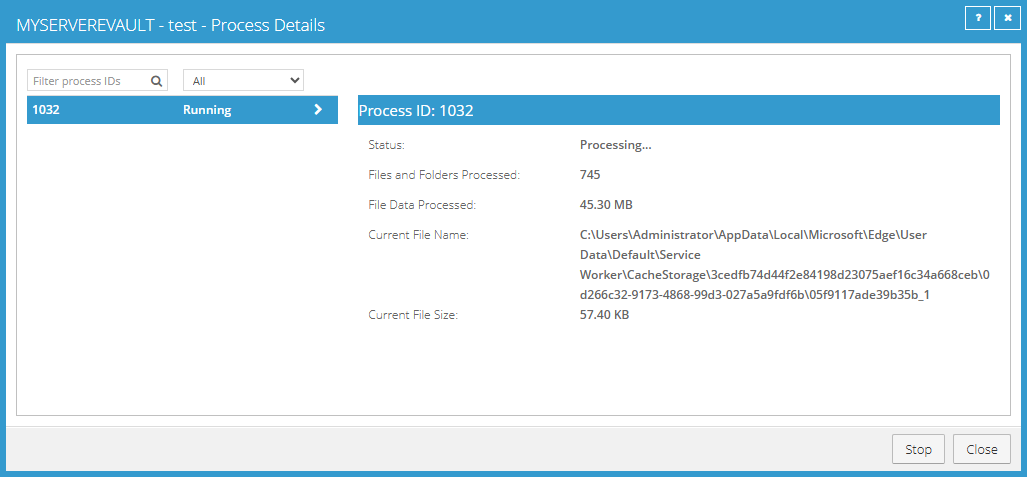
- select Close to close the window;
- the job status is displayed in the Last Backup Status column of the Jobs section.
How to edit a job
You can edit a backup job at any time, regardless of the configured schedule.
- Access the server's Jobs section;
- locate the job you want to edit;
- in the Action column, open the Select Action drop-down menu;
- select Edit Job;
- in the Edit Job window, you can:
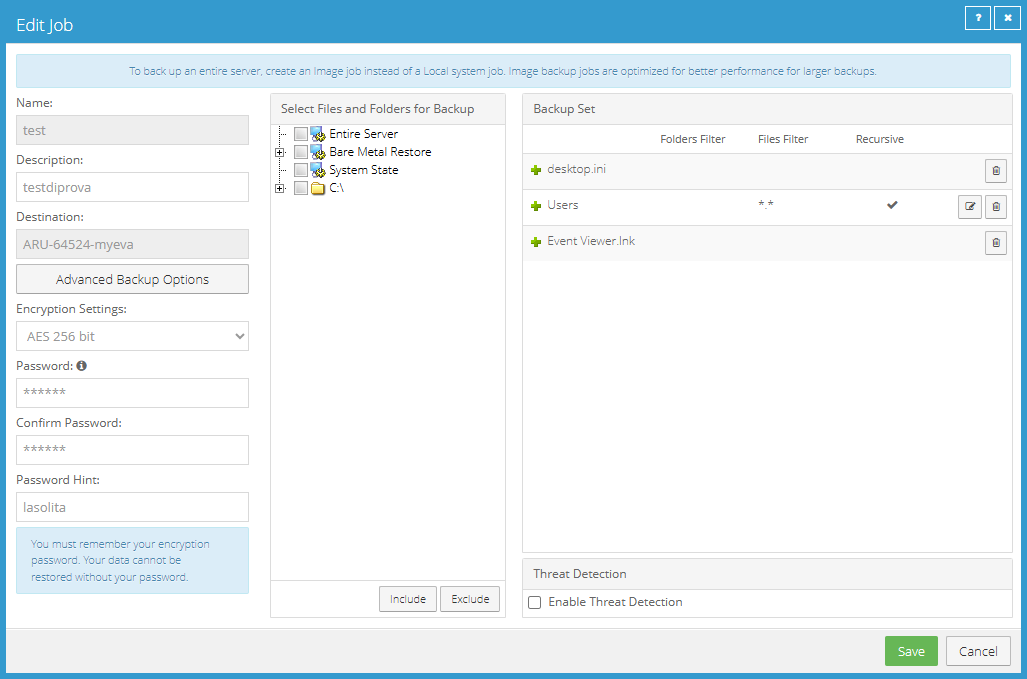
- edit the job description;
- re-enter or update the encryption password;
- add or remove folders and files from the backup;
- modify folder settings (filters and the Recursive option);
- select Save to save your changes;
- the changes will apply to subsequent job executions.
How to synchronize a job
Synchronization allows you to update the job status between the server and the EVault console without performing a backup.
- Access the server's Jobs section;
- locate the job you want to synchronize;
- in the Action column, open the Select Action drop-down menu;
- select Synchronize;
- the job is synchronized and the console updates the backup status information.
How to delete a job
When deleting a job, you can choose whether to delete its associated backups or retain them in the vault.
- Access the server's Jobs section;
- locate the job you want to delete;
- in the Action column, open the Select Action drop-down menu;
- select Delete Job;
- in the Delete Job window, choose one of the following options:
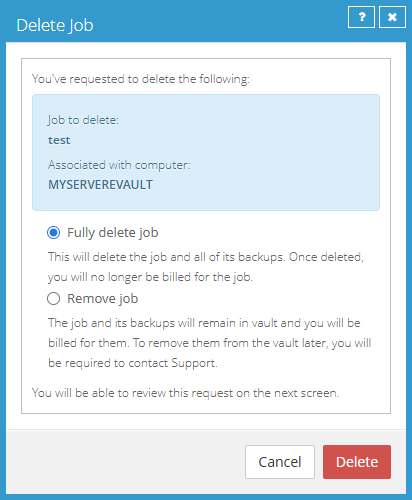
- select Delete;
- in the Confirm Your Deletion window, select Confirm Deletion to confirm.
How to delete one or more job backups
A job must have at least one available backup: you cannot delete all its associated backups.
- Access the server's Jobs section;
- locate the job whose backups you want to delete;
- in the Action column, open the Select Action drop-down menu;
- select Delete Backup;
- in the Delete Backup window, select the backups you want to delete:
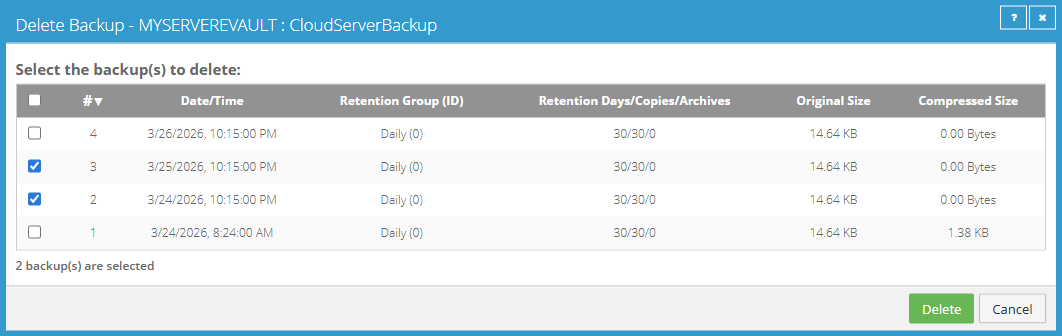
- select Delete;
- in the Confirm Backup Deletion window, select Confirm Deletion to confirm;
- the selected backups are deleted and the storage space they occupied is freed up.