What is the connection agent
The connection agent is a software component required to enable data backups on a server, whether Windows or Linux. Once installed and configured, the agent enables communication between the server and the Commvault management console, allowing you to perform backup, restore and monitoring operations.
Available versions of the connection agent
Connection agents by operating system
- Windows-x64
- Linux RPM x64
- Linux DEB x64
- FreeBSD x64
- MAC OS x64
Agents for Bare Metal Restore (1-Touch)
- Baremetal Windows ISO | 1-Touch
- Baremetal Linux ISO | 1-Touch (Linux Live CD)
How to download the connection agent
Information required to configure the agent
Before starting, make sure you have the following information, available on the Backup account details page:
- User Name - of the Backup account (in the format username\username).
- Password - set when creating the Backup account.
When .NET Framework 3.5 is required
You only need to install
.NET Framework 3.5 if the connection agent will be used on one of the following operating systems:
- Windows Server 2008 / 2008 R2
- Windows Server 2012 / 2012 R2
In all other cases, the framework is not required. Always check that the component is enabled in the operating system's
Features panel before proceeding with the agent installation.
How to install the connection agent on a Windows server
- Access the server via RDP;
- download the connection agent;
- run the executable file to start the installation;
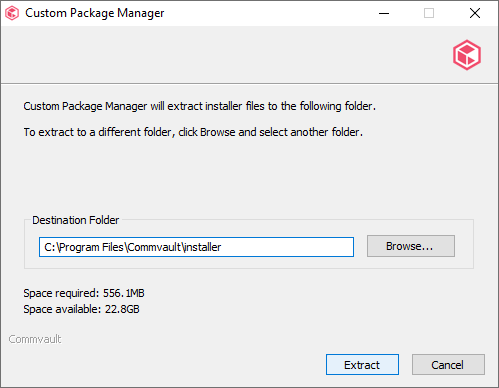
- choose the installation path and confirm with Extract;
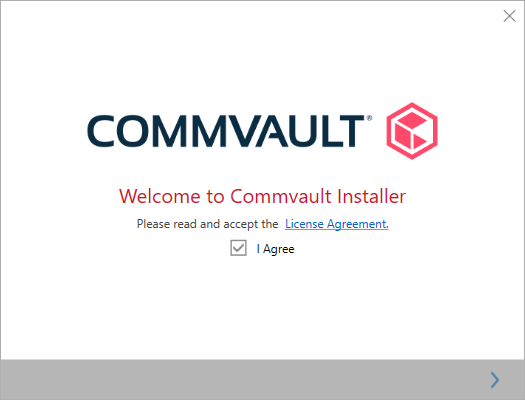
- accept the license terms and conditions by selecting I Agree, then click the arrow at the bottom right;
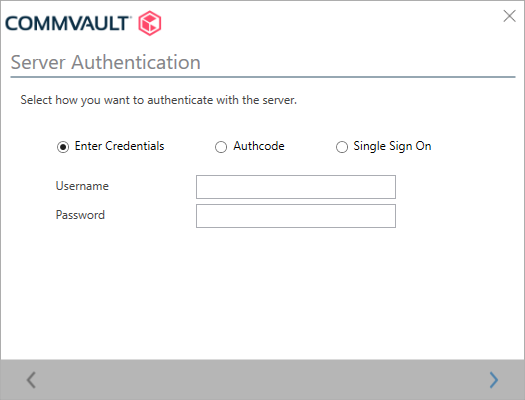
- under Server Authentication, select Enter Credentials:
- enter your Backup account user name (in the format username\username) in the Username field;
- enter your Backup account password (set when creating the Backup account) in the Password field;
- click the arrow at the bottom right to continue;
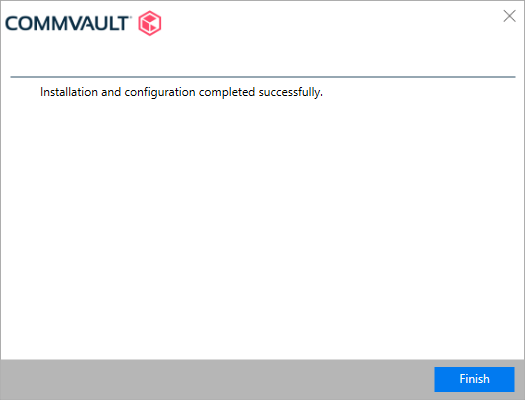
- confirm the installation by clicking Finish;
- once the connection agent has been installed, we recommend restarting the server.
How to install the connection agent on a Linux server
Prerequisites for installing the Linux DEB x64 agent
apt install libc6-i386
apt install psmisc
apt install kexec-tools
Prerequisites for installing the Linux RPM x64 agent (Bare Metal Restore only)
yum install psmisc
For CentOS 8.x
also install
yum install ncurses-compat-libs libnsl
- Access the server via SSH;
- to install the Linux DEB x64 agent, run the command:
- to install the Linux RPM x64 agent, run the command:
- to register the agent, enter:
/opt/commvault/Base/SIMCallWrapper -OpType 1000 -user 'username' -password 'password' -output /tmp/output.xml -restartServices
username: Backup account user name (in the format username\username);
password: password set when creating the Backup account;
- alternatively, if you have an authentication code, you can register the agent using:
/opt/commvault/Base/SIMCallWrapper -OpType 1000 -authcode authentication_code -output /tmp/output.xml -restartServices
authentication_code: code available in the Company section of the Commvault management console;
- to restart the Commvault service:
commvault stop
commvault start
- once the connection agent has been installed, we recommend restarting the server.
What to do after installing the connection agent on a server
After completing the connection agent installation, restart the server to apply the changes.
Then access
Commvault Command Center and:
How to uninstall the connection agent from a Windows server
- Access the server via RDP;
- open the Control Panel from Start;
- select Programs and Features;
- right-click the Commvault ContentStore agent and select Uninstall;
- in the window that appears, select Uninstall all packages in the instance and confirm by clicking the arrow at the bottom right;
- once the process is complete, select Finish;
- once the connection agent has been uninstalled, we recommend restarting the server.
How to uninstall the connection agent from a Linux server
Linux DEB x64 agent
- Access the server via SSH;
- to remove the installed agent, run the command:
- once the connection agent has been uninstalled, we recommend restarting the server.
Linux RPM x64 agent
- Access the server via SSH;
- to remove the installed agent, run the command:
- to remove part of the installed agent, run the command:
cvpkgrm -i InstanceXXX- XXX (usually 001) is the Commvault instance number on the Linux server, which you can retrieve using the command:
- then run:
rpm -e --justdb package_name
- once the connection agent has been uninstalled, we recommend restarting the server.